1
Open Mentor in Safari
Go to app.mentordiscipleship.com in Safari (Chrome and other browsers on iPhone may not support Add to Home Screen). app.mentordiscipleship.com
Mentor runs in your browser as a web app — you won't find it in the Apple App Store or Google Play Store. Adding it to your home screen gives you a full-screen app experience, just like a native download.
Mentor is a Progressive Web App (PWA). That means there is nothing to install from the App Store or Google Play — you open it in Safari or Chrome and save it to your home screen.
Once added, Mentor opens full-screen with its own icon, works offline for key pages, and feels like a regular app on your phone.
Follow along step by step. If you get stuck, this video shows the full process on a phone.
Screen recording: adding Mentor to your home screen from a mobile browser.
Choose your phone type below. The steps are slightly different on iPhone and Android, but both take less than a minute.
Go to app.mentordiscipleship.com in Safari (Chrome and other browsers on iPhone may not support Add to Home Screen). app.mentordiscipleship.com
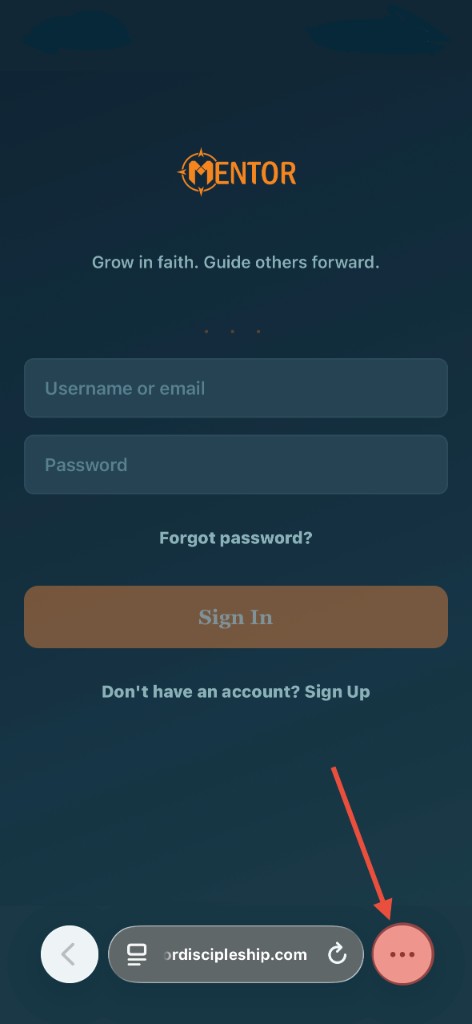
At the bottom of Safari, tap the Share icon — a square with an arrow pointing up.
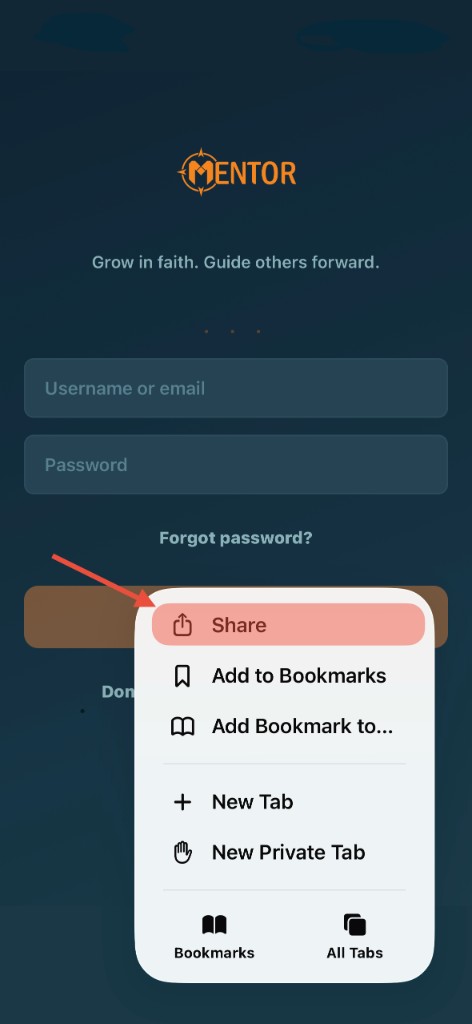
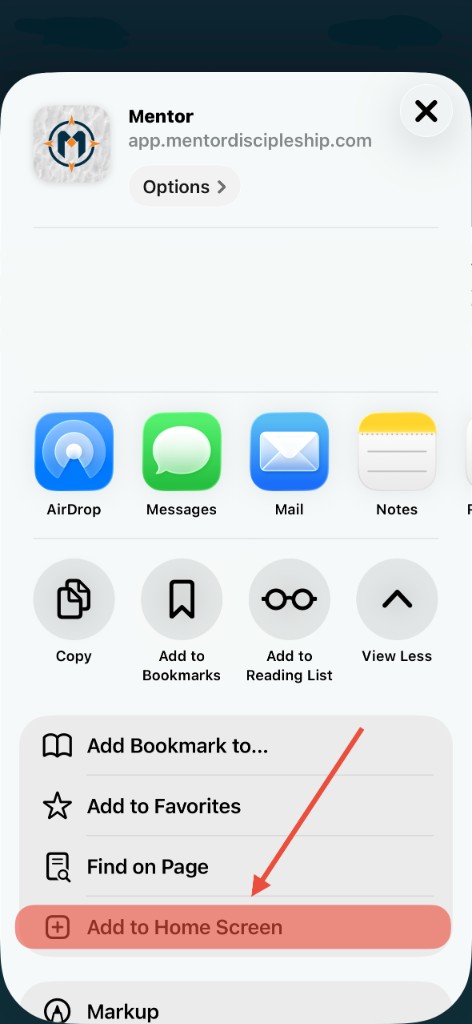
Scroll down in the share sheet and tap Add to Home Screen.
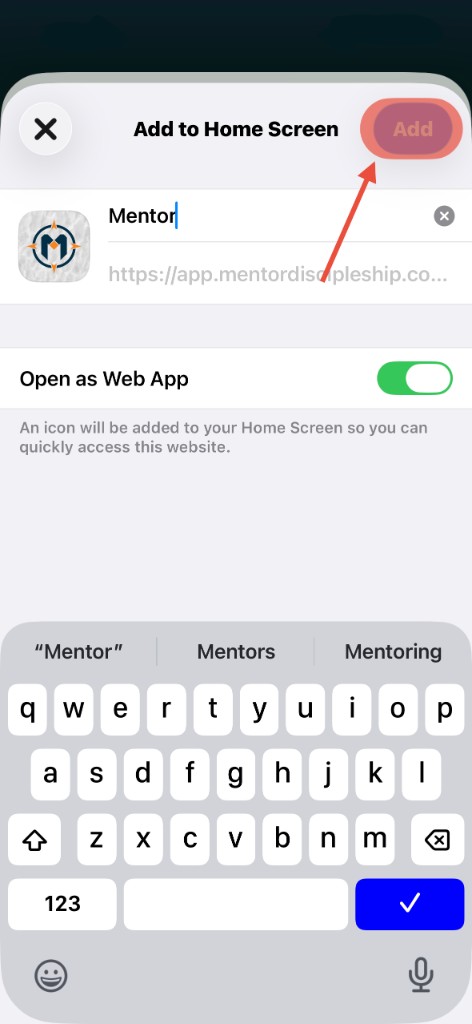
Confirm the name "Mentor" and make sure Open as Web App is turned on, then tap Add in the top-right corner.
Mentor now appears on your home screen. Open it from there anytime — it will launch full-screen like a native app.
Go to app.mentordiscipleship.com in Google Chrome (recommended) or Samsung Internet. app.mentordiscipleship.com
Tap the three-dot menu (⋮) in the top-right corner of Chrome.
Look for Install app or Add to Home screen in the menu. On Samsung Internet, tap Add page to, then Home screen.
Tap Add or Install when prompted. Mentor will appear on your home screen with the Mentor icon.
If you don't see the option, try updating Chrome or use the video walkthrough above.
Ready to get started? Open Mentor in your browser first, then add it to your home screen.
Open Mentor →